The claim GUI
A full picture-by-picture walkthrough of the /claim menu — main menu, my claims, claim detail, per-trustee permissions, the sale flow, the market browser and the trusted-claims tab.
Everything the add-on adds runs from one command — /claim with no arguments opens this menu. (With arguments, /claim passes straight through to GriefPrevention.) No config files to touch for day-to-day use.
Every icon carries a lore tooltip that spells out exactly what it does and how to click it — hover any item in-game to read it. This page walks the whole tree and shows those tooltips.
The main menu
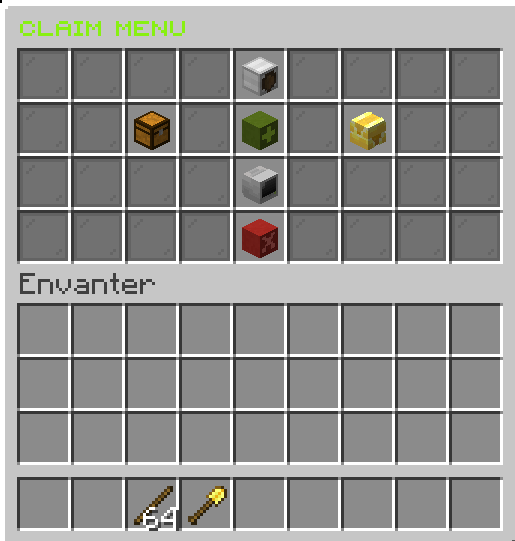
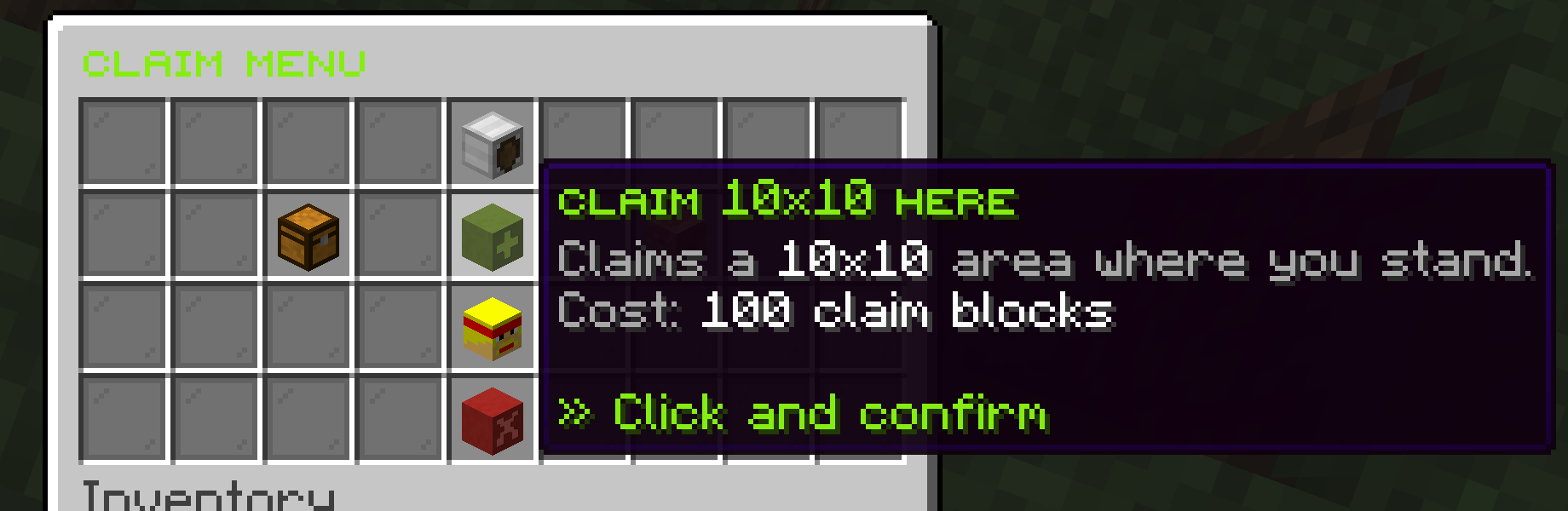
/claim — the main menu: create, trusted claims, my claims, the market and your block balance.| Icon | Button | What it does |
|---|---|---|
| 🟩 Grass | Claim 10×10 here | Claims a 10×10 area where you stand. Cost: 100 claim blocks. Only shows when you’re not already inside a claim and have enough free blocks. |
| 🧑 Head | Trusted Claims | Opens a separate tab of claims other players have trusted you on. |
| 📦 Chest | My Claims | View, manage and list your own claims for sale. |
| 🟨 Gold | Claims for Sale | Browse and buy claims listed on the server. |
| 🧑 Your head | Block balance | Shows your total / used / free claim blocks. |
| ❌ Barrier | Close | Closes the menu. |
My Claims
My Claims is a paginated list of every claim you own. Each claim is one icon — hover it for the full detail and the three click-actions:
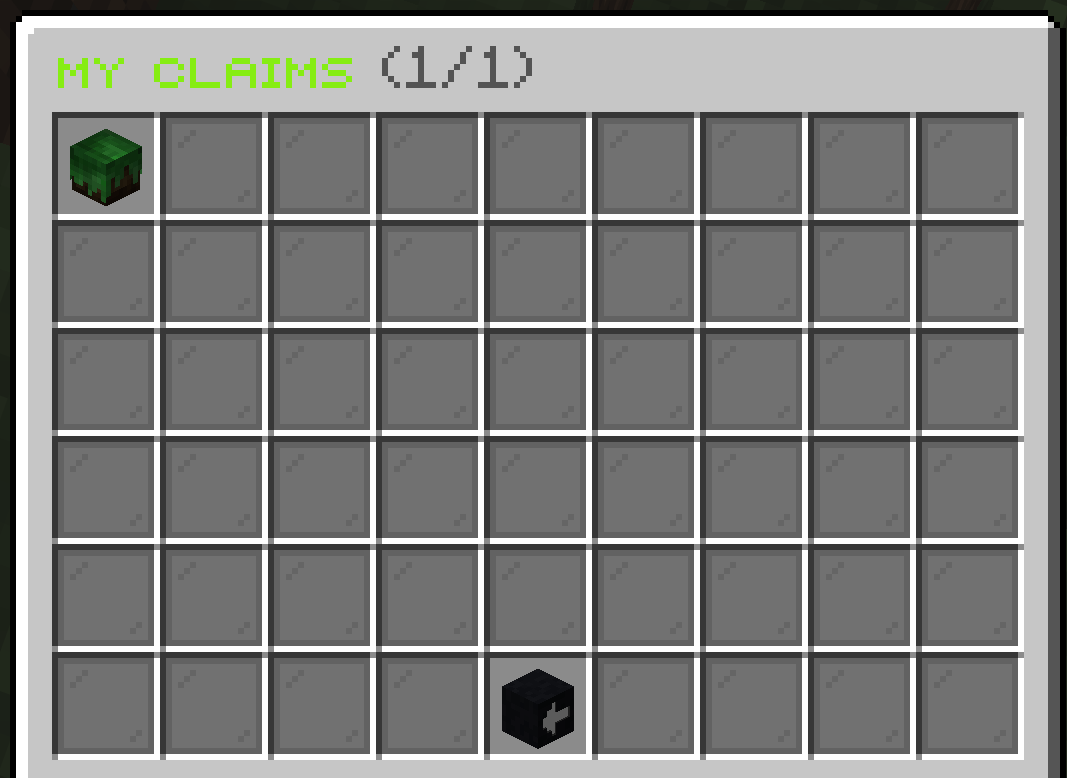
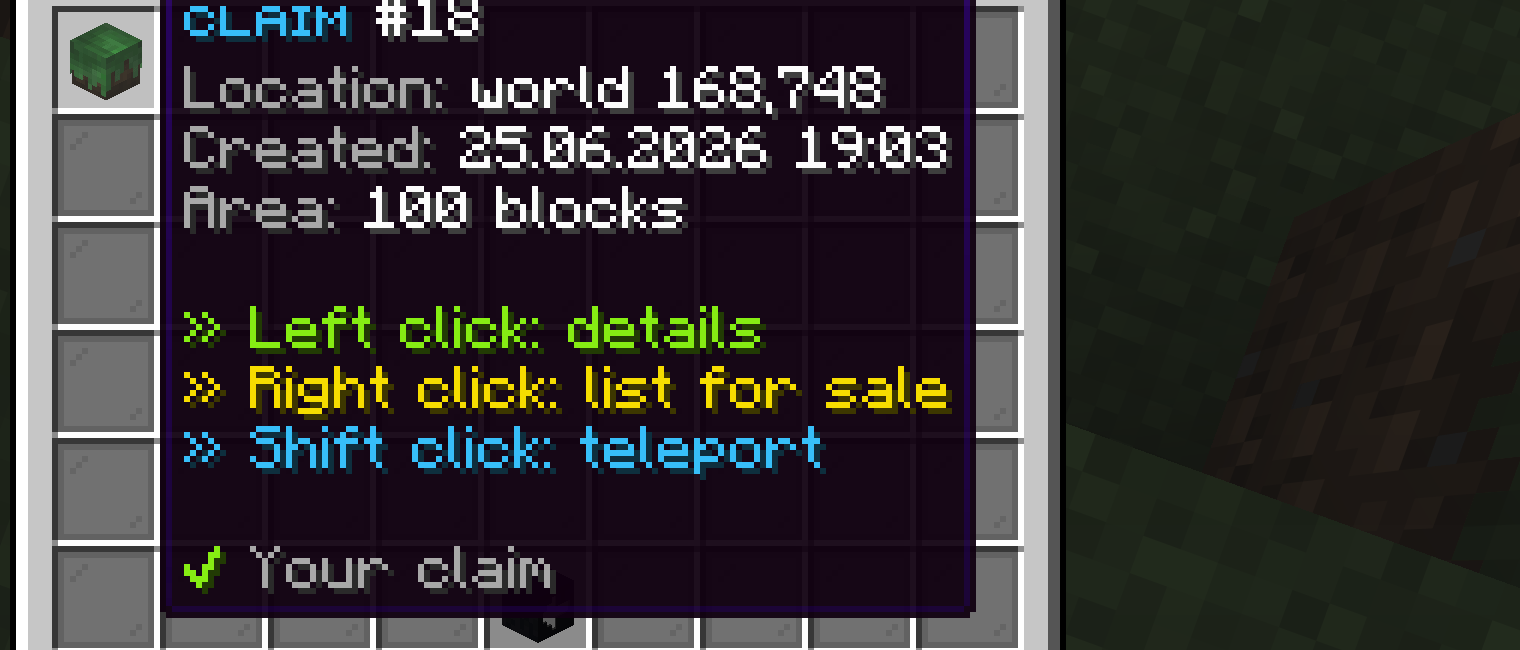
- Left click → details — open the full claim-detail screen (below).
- Right click → list for sale — start the sale flow (a sign asks for a price).
- Shift click → teleport — a 5-4-3-2-1 action-bar countdown, then it warps you in. Walking cancels it; turning your head doesn’t.
A claim that’s currently listed shows a red ● FOR SALE — <price> line and a gold icon instead of green.
Creating a claim
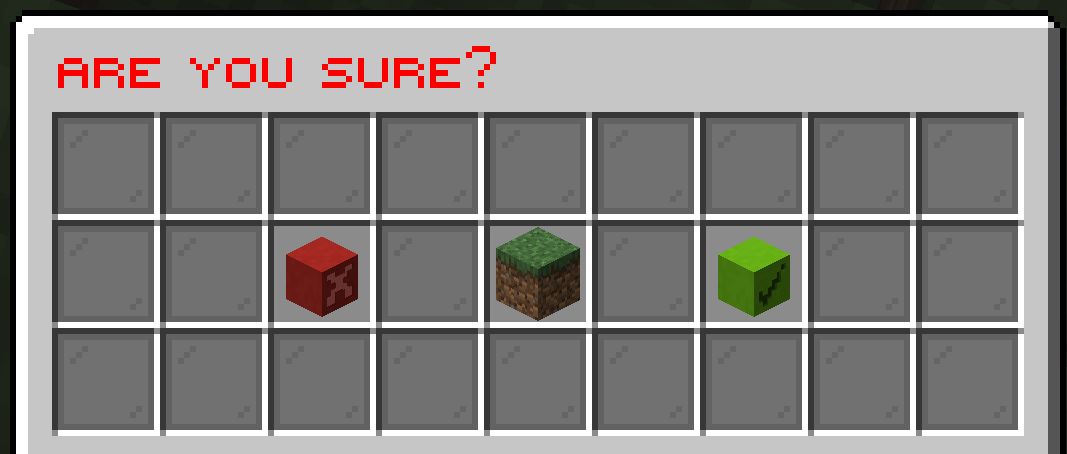
The main menu’s Claim 10×10 here button is the fastest way to make a claim — it grabs a 10×10 area around you for 100 claim blocks. Clicking it opens a confirmation first, so you never spend blocks by accident:
Claim detail
Left-clicking a claim opens its detail screen. The head at the top is the owner (created date, last-seen, area and location); the row of heads below are the claim’s trustees; and the bottom row holds the action buttons, centred and balanced.
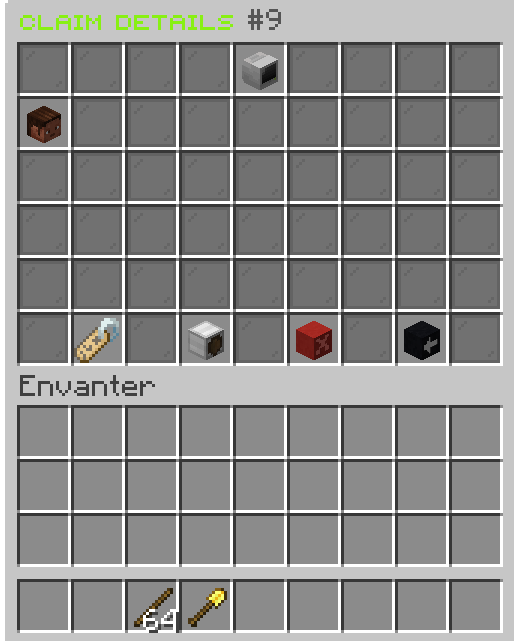
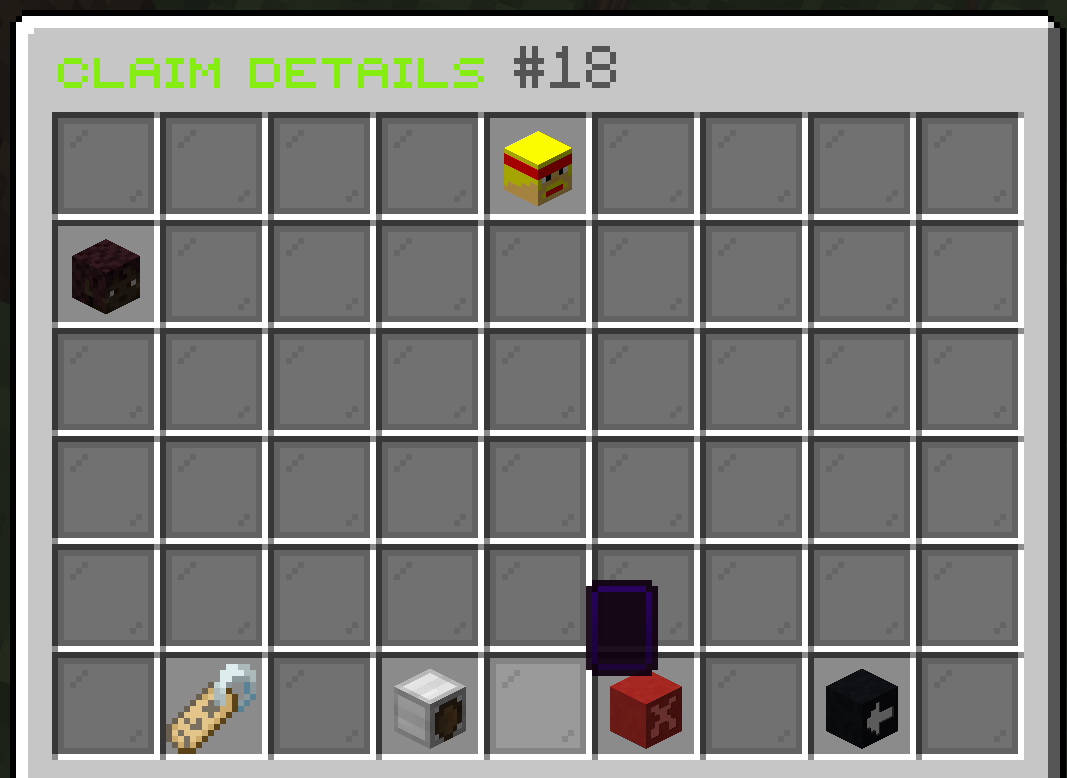
Hover a trustee head to see their permission tier, when they were added and last seen, plus what you can do with them:
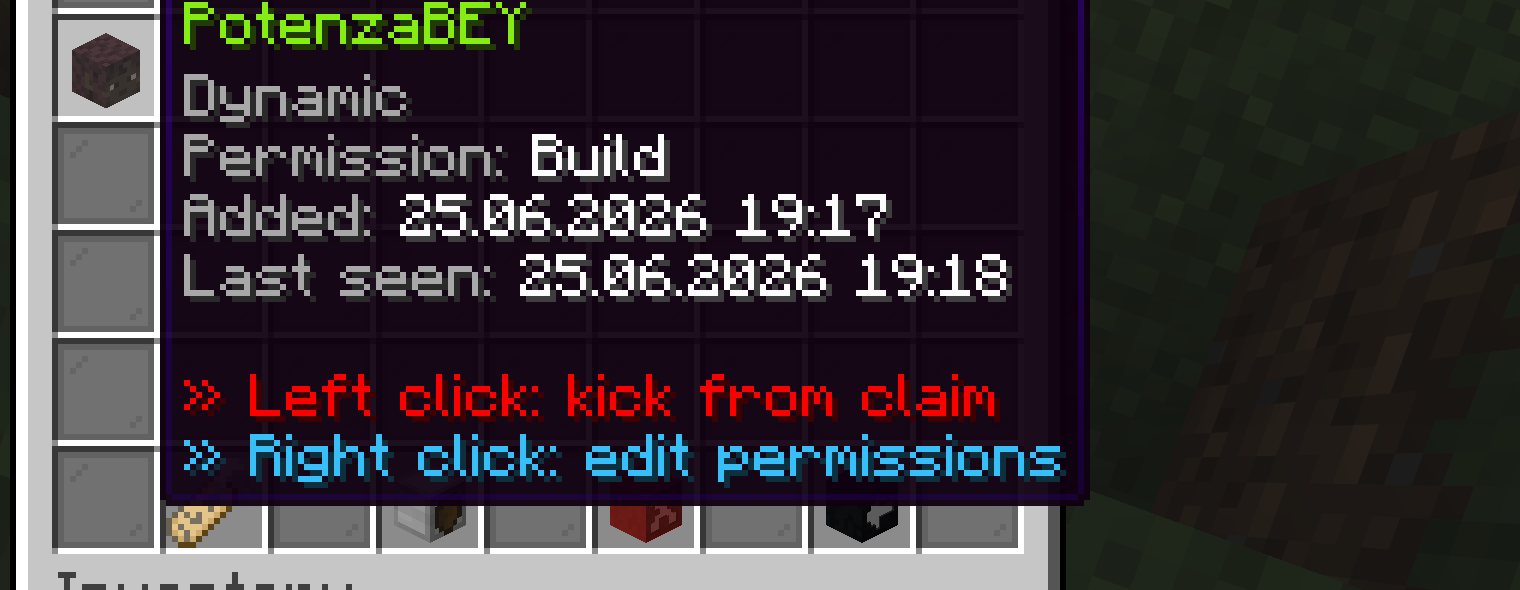
The bottom-row buttons depend on who you are and the claim’s state:
| Button | Lore | Shown to |
|---|---|---|
| 🏷️ List for sale | Put this claim on the market. » Click and set a price | Owner / a sale-capable trustee, when not already listed |
| 🟩 Enable PvP | Enables PvP on this claim. Takes 60s to activate (warning). » Click | Owner / a PvP-capable trustee |
| ❌ Delete claim | Permanently deletes this claim. Blocks are refunded. | Owner only |
| 💚 Unlist | This claim is for sale. Price: <x>. » Click to remove from sale | Owner, when the claim is listed |
| 💎 Buy | Seller / Price / Area / » Click: preview and buy | A non-owner, when the claim is for sale |
| 🟣 Teleport | Visit this claim and look around before you buy it. » Left click: teleport | A non-owner, when the claim is for sale |
| « Back | — | Everyone |
For a buyer looking at a for-sale claim the bottom row reads Buy / Back / Teleport — left-click Teleport for the same 5-4-3-2-1 countdown warp as own-claim teleport, so you can walk the land before paying.
Per-trustee permissions
Right-clicking a trustee head (as the owner) opens that player’s permission toggles. These layer on top of GriefPrevention’s trust — they can only ever restrict what the player could otherwise do, never grant more.
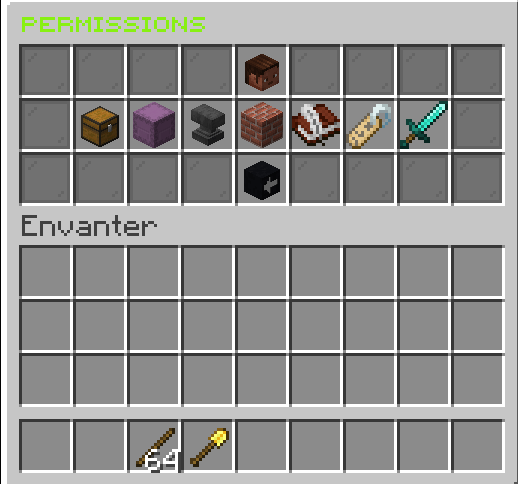
Each toggle explains exactly what it covers and shows its current state — click to flip it live (it re-reads from the saved state, so there’s never a desync):
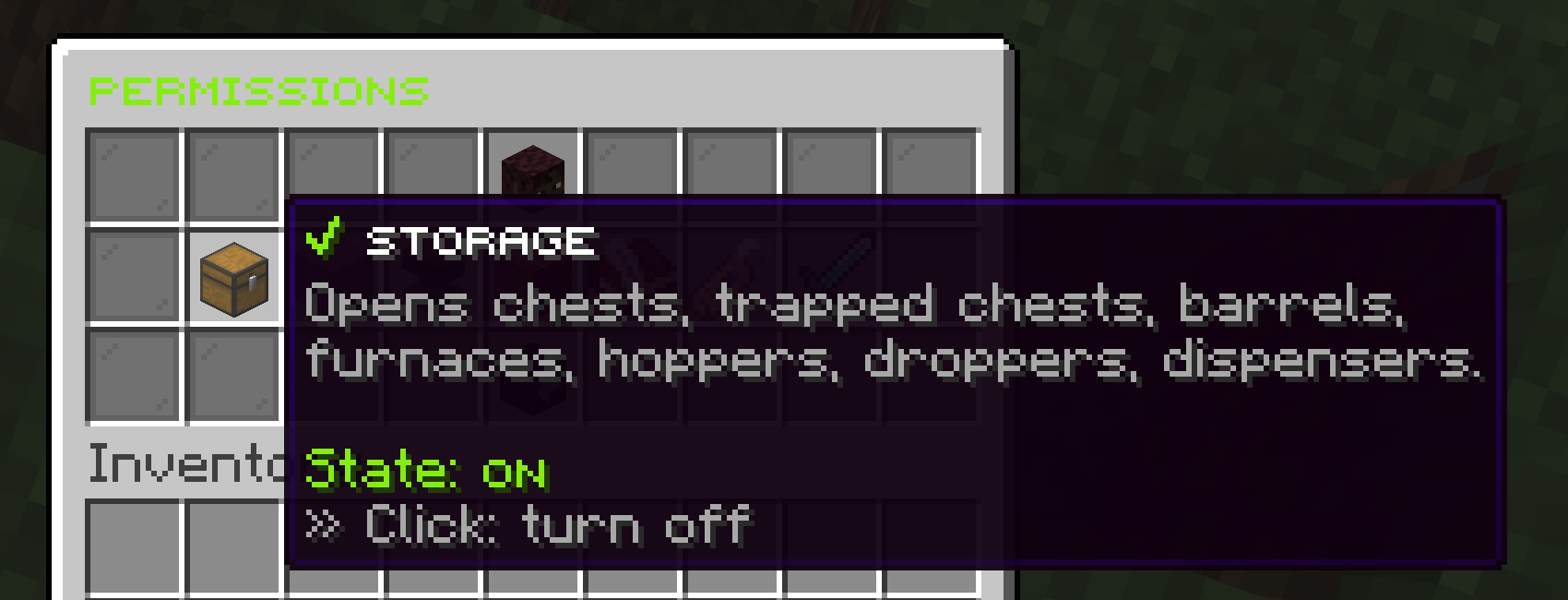
| Toggle | Covers |
|---|---|
| Storage | Chests, trapped chests, barrels, furnaces, hoppers, droppers, dispensers. |
| Shulker box | Opening shulker boxes (portable valuable storage). |
| Work blocks | Anvils, enchanting tables, grindstones, smithing tables, cartography tables, looms, stonecutters. |
| Build (place/break) | Placing and breaking blocks. |
| Grant/revoke trust | Granting/revoking basic trust to others — cannot grant special permissions. |
| List for sale | Listing/unlisting this claim. Income always goes to the owner. |
| Toggle PvP | Turning PvP on/off on this claim. |
Selling & the market
There are two ways to put a claim up for sale — right-click it in My Claims, or open its detail and click List for sale. Either way a sign prompt asks for the price (no chat spam, no anvil quirks); leave it blank to cancel. A second sign then asks for an optional listing name — the name buyers can search for (leave it blank to list without one). Each sign carries a colour-coded hint (« Sale Price » / « Claim Name ») so you always know which one you’re typing on. After you confirm, the claim is listed — and, by default, locked until it’s sold or unlisted. Servers that prefer listed claims to stay usable can turn the lock off with sale.lock-enabled: false in market-config.yml.
Listed claims appear in Claims for Sale, reachable from the main menu or with /marketclaims:
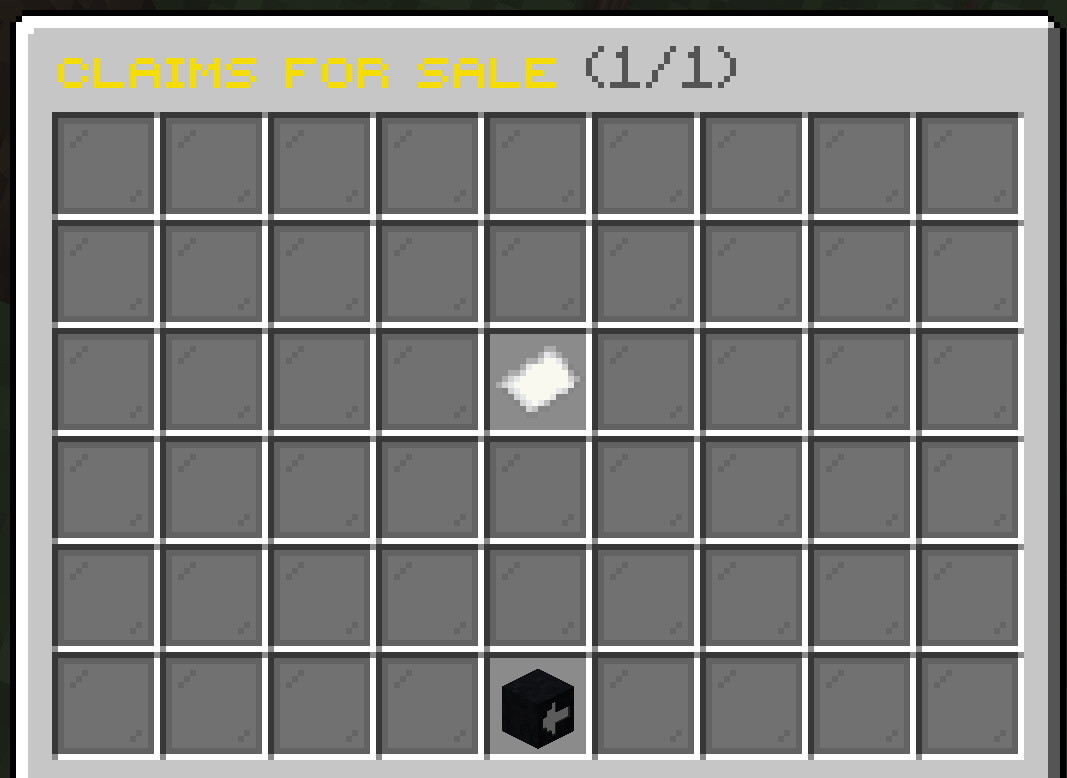
Each listing shows its location, price, seller, area and creation date, and a » Click: preview, buy and teleport hint — a named listing shows its name in the item title, so it stands out in the list. Looking for a specific claim? Search it by name with /claim search <name> or /marketclaims <name> (also /listedclaims) — the same browser opens filtered, the title shows your query, and paging keeps the filter. The search matches listing names and seller names, so you can also pull up everything one player is selling. Clicking a listing opens the claim’s detail with Buy / Back / Teleport across the bottom: Teleport (left-click) warps you to the land with the usual countdown so you can inspect it first, and Buy outlines the claim in green particles and opens a confirmation that lays out the price, your balance and your balance after — so you buy knowingly. The block capacity transfers as one atomic transaction (no dupes, with rollback), and an offline seller is paid and notified the next time they log in.
Trusted claims
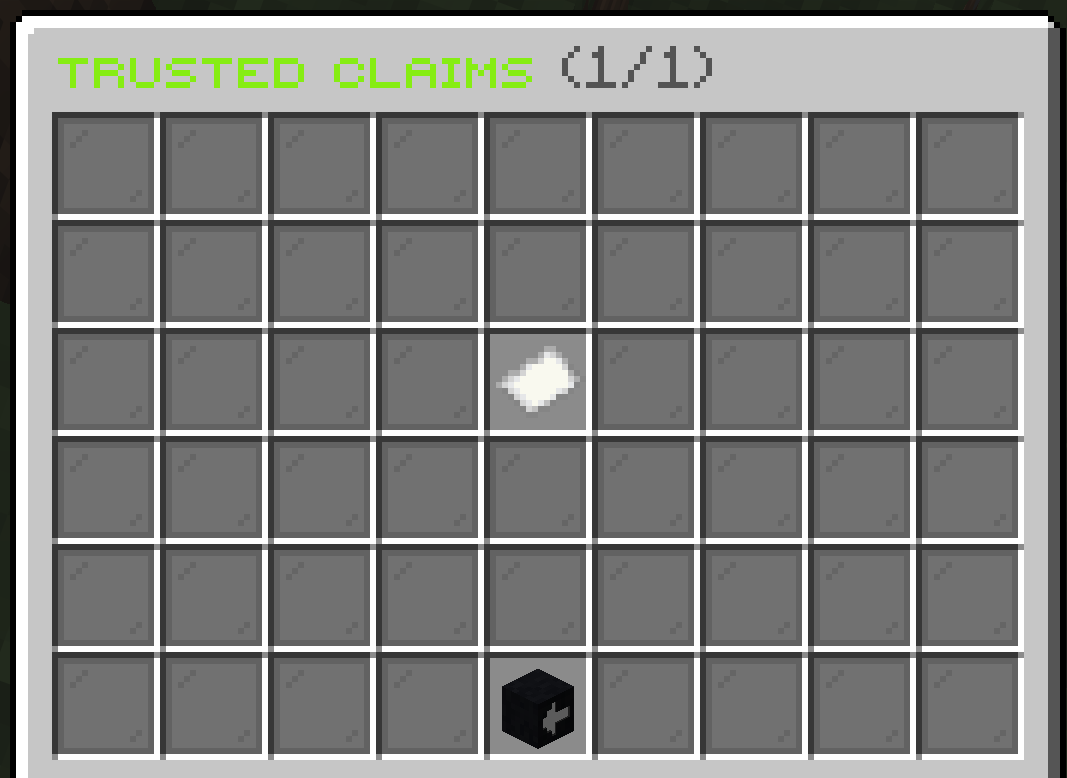
The Trusted Claims tab is the mirror of My Claims: it lists claims other players have trusted you on, kept separate from your own. It’s view-only — you can open a claim’s detail to see your permissions there, but there’s no teleport from this tab (you can only teleport to your own claims).