
 BuiltByBit
Using QuickBuy
The Quick Buy screen, favourites, selling and search.
The Quick Buy screen
/quickbuy opens the main menu — a grid of favourite slots plus a row of control buttons.
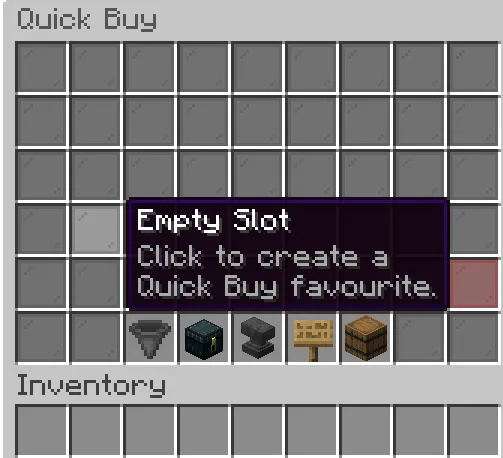
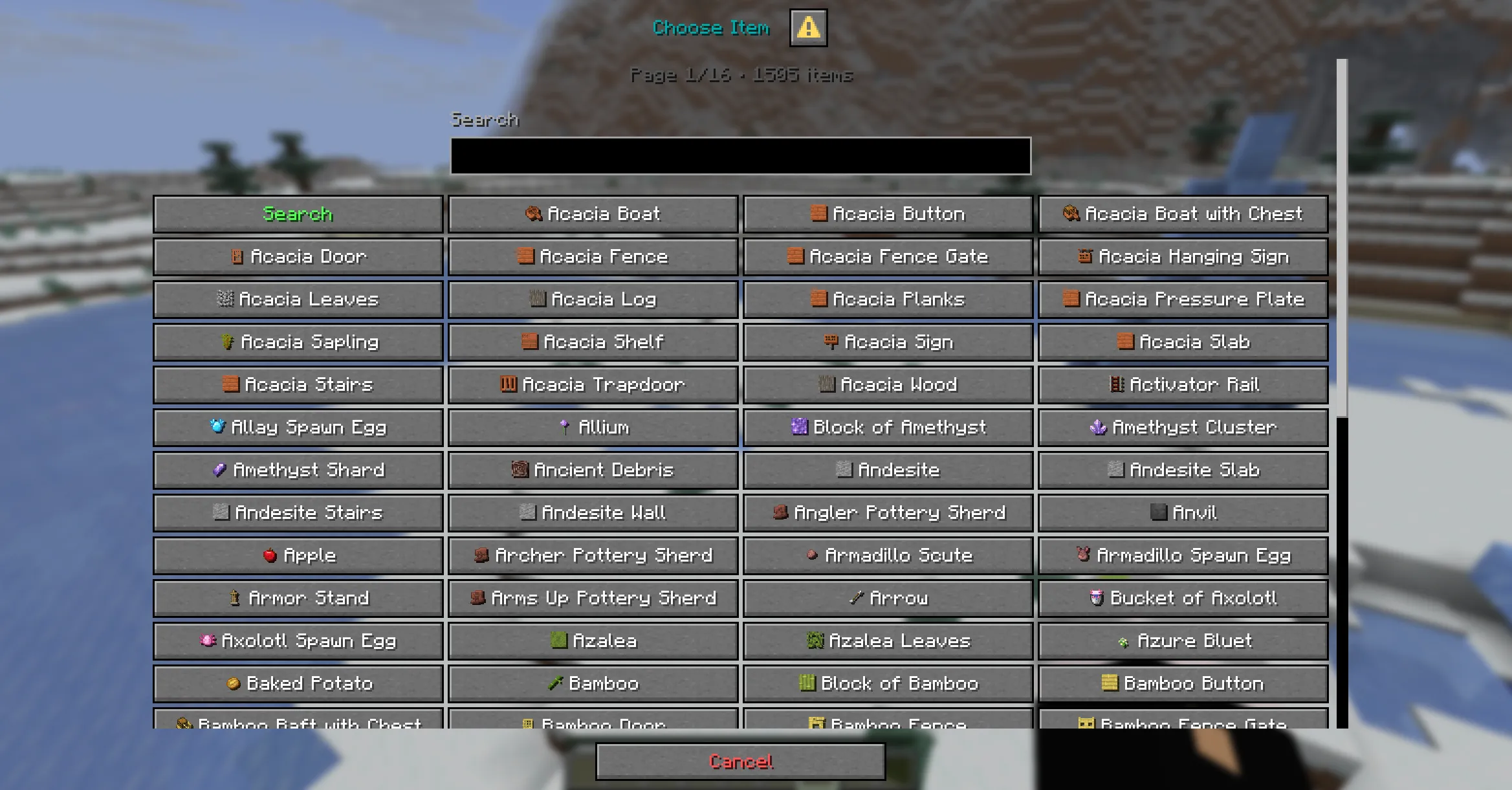
Saving a favourite: click an empty slot → the Choose Item dialog → the Amount dialog → the favourite is saved with its buy amount.
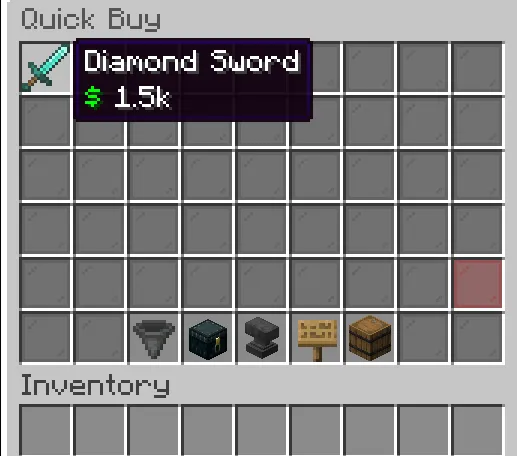
A saved favourite shows the live cheapest price in its lore:
- Left-click → buys the cheapest listings of that item, up to the saved amount.
- Right-click → removes the favourite.
Control buttons
| Button | Action |
|---|---|
| Filter | Cycles the price filter. |
| Quick Buy / Refresh | Re-reads live prices. |
| Auction | Opens the auction plugin’s own GUI. |
| Search | Opens the search dialog. |
| Your Items | Opens your sell board. |
| Reset | Clears favourites (with a confirmation dialog). |
Selling
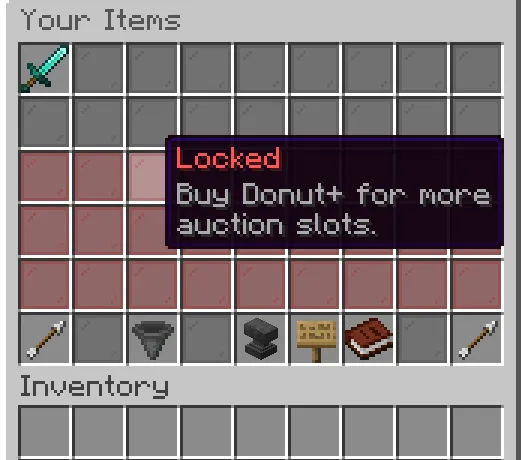
Open Your Items, click a usable (gray) slot → the Insert Item menu → drop the item in the middle slot → Confirm → the Price dialog → it’s listed on your auction plugin. Locked (red) slots require a rank.
Search
The Search dialog forwards your query to the auction plugin. Plugins with a native text search expose it directly; for CrazyAuctions (which has no free-text search) QuickBuy maps category names — armor, weapons, tools, food, potions, blocks, other — to its category view. An empty query opens the normal auction GUI.
Sell slots & ranks
A normal player gets the default sell slots; ranks unlock more via permissions (quickbuy.slots.27, quickbuy.slots.36, or quickbuy.donutplus for every slot). See Commands & permissions.