
The menus
A visual tour of every Kernel Replay screen — the settings menu, the Overwatch review queue, player reports, the replay browser and the in-game playback controls.
Everything in Kernel Replay is driven from in-game menus — no config edits for day-to-day use. This page walks through every screen a moderator sees, captured 1:1 from the real client.
Settings — /replay menu
The control panel for what gets recorded and how long it is kept. The top row is on/off toggles (green dye = on, grey dye = off); the bottom row is value dials (clocks) you left-click to raise and right-click to lower.
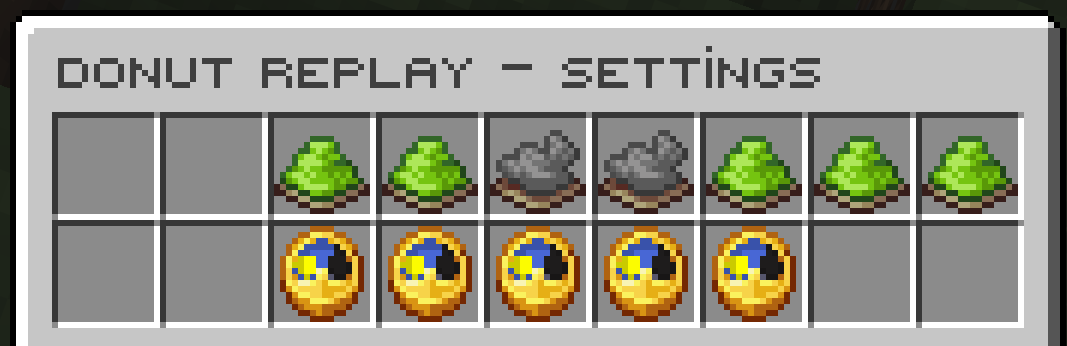
/replay menu — toggles for Flag / PvP / Manual / Death Cam / Player Reports recording, plus retention & window dials.| Toggle | What it does |
|---|---|
| Flag Recording | Auto-record players your anticheat flags. |
| PvP Recording | Auto-record every fight and kill. |
| Save Every PvP Fight | On keeps every fight; off keeps only fights with a kill. |
| Manual Recording | Record everyone on the server right now. |
| Death Cam | Save a clip whenever a player dies — including the seconds before the death. |
| Player Reports | Let players report cheaters / griefers. |
| Death Report Prompt | Tell victims they can report their killer. |
The clocks set Flagged / PvP retention (days kept), the PvP window (seconds recorded after a hit), and Death Cam pre-roll / post-death seconds.
Overwatch — /overwatch
The reviewer hub. A CS:GO-style review queue: pick a clip, watch it, deliver a verdict.
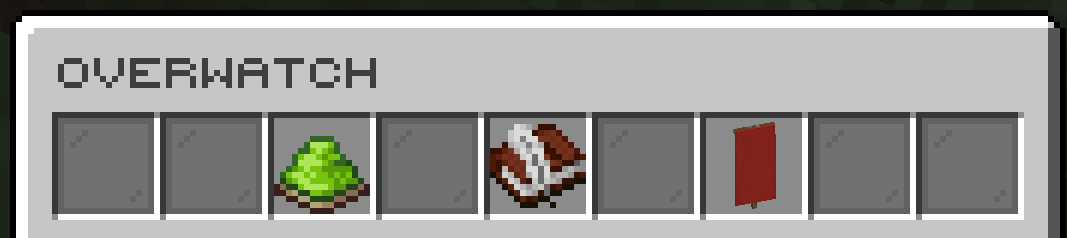
/overwatch — New Recordings (unreviewed), My Reviews (clips you've judged) and Player Reports.New Recordings
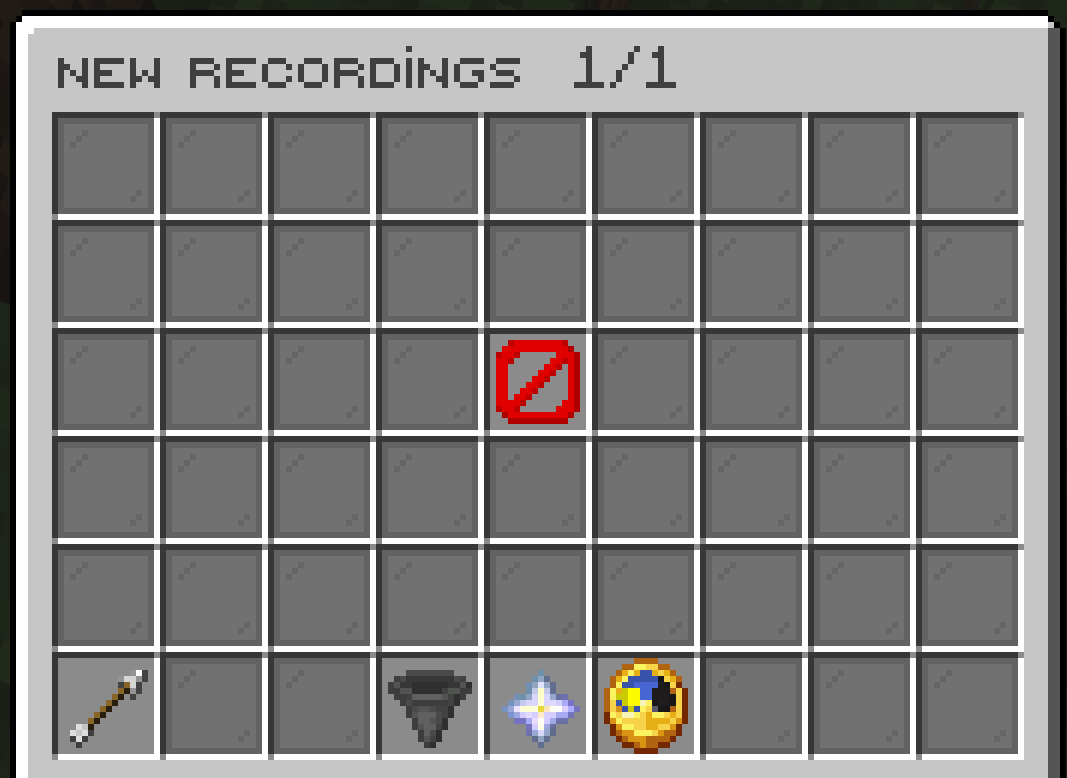
Clips waiting for a verdict. Each head is one recording — left-click to start watching, right-click a PvP/flagged clip to see who has already reviewed it. The bottom row carries the page arrows, a Filter (by recording type), a Sort by date dial and the live total.
My Reviews
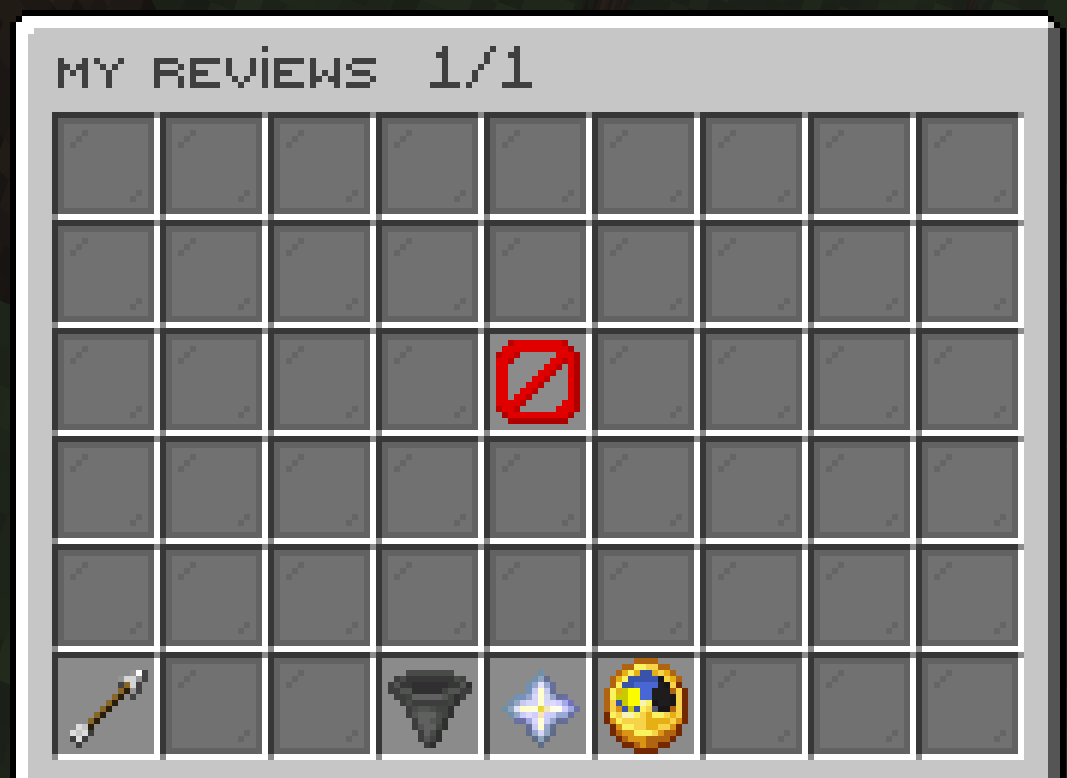
The same layout, but showing clips you have already judged — re-watch them or change your verdict.
Flagged clips — /overwatchverified
The admin view: every flagged clip plus the staff decision on it. Items are colour-coded by state — punished, no-action, or still pending. Left-click opens the per-clip review detail; right-click opens the staff-decision menu (ban / no action / undo a ban).
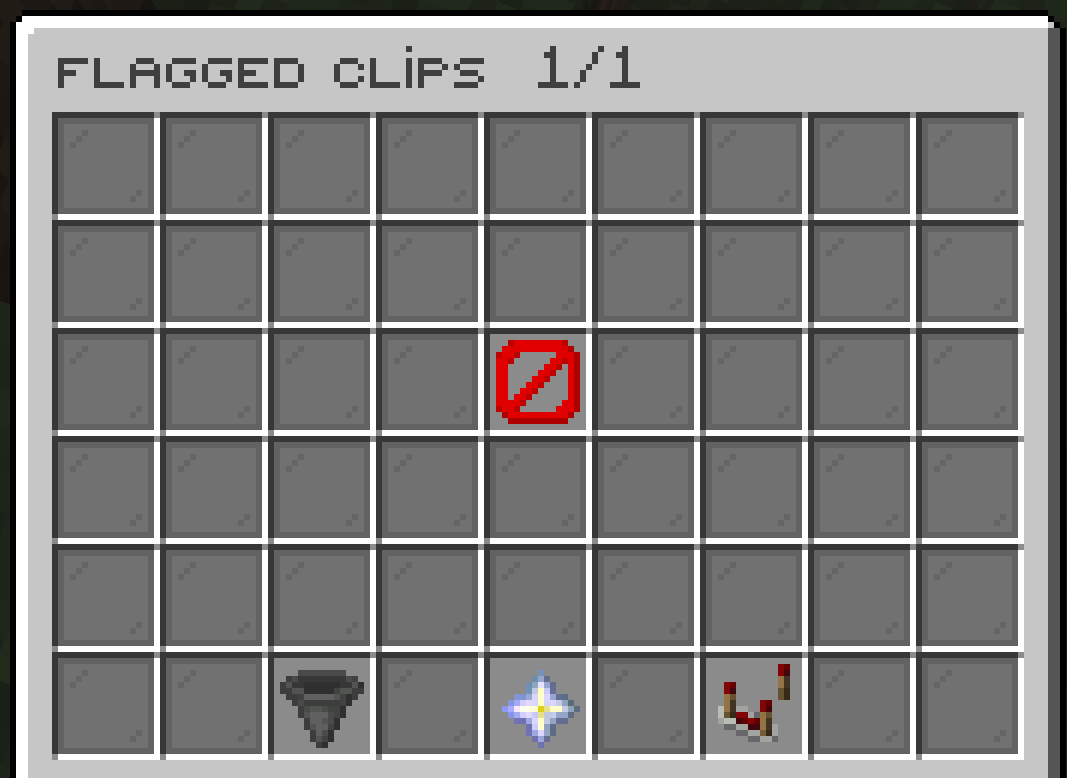
/overwatchverified — flagged clips with their reviewer counts and the final staff decision.Player reports
Players file reports with /report <player> (aliases /rapor, /raporla); staff read them inside Overwatch under Player Reports.
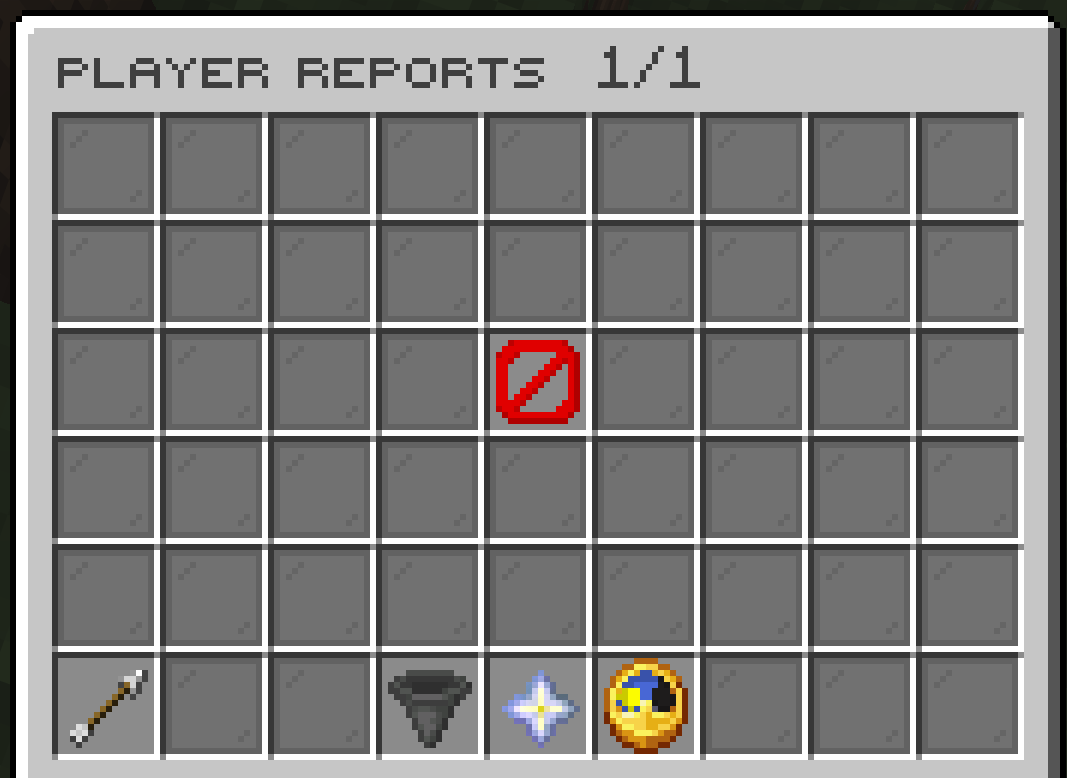
A player can always check their own filings and the outcome with /myreport:
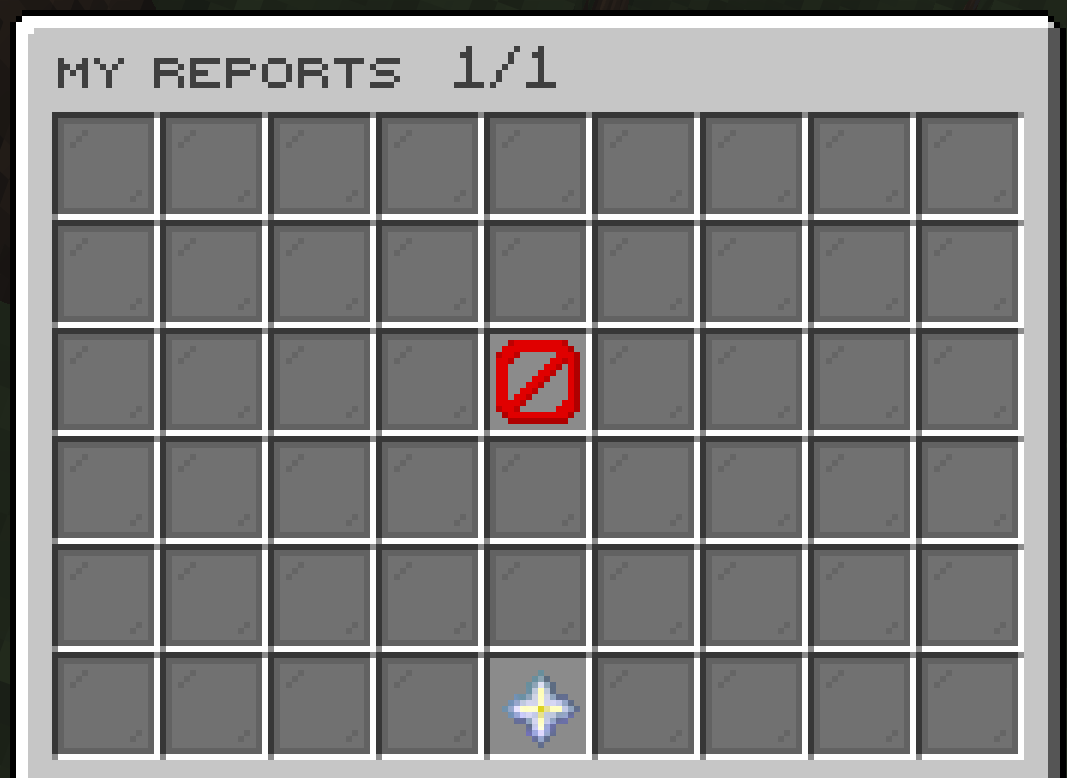
/myreport — a player's filed reports, colour-coded by outcome (pending · no action · punished).The replay browser — /replay check
Browse saved recordings. The same screen powers four filtered entry points, so each command drops you straight into the right list:
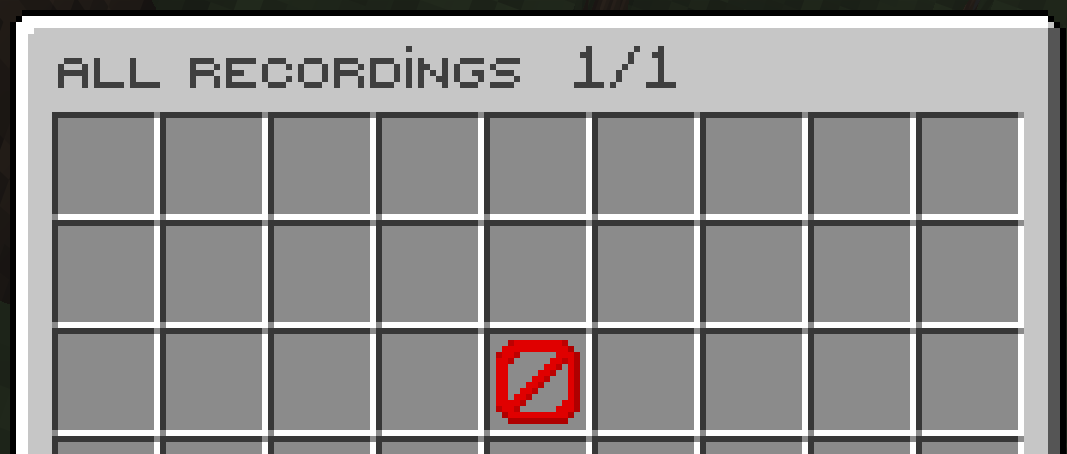
/replay check — every saved recording; each head plays its clip on click./replay flagchecks— anticheat-flagged recordings only.
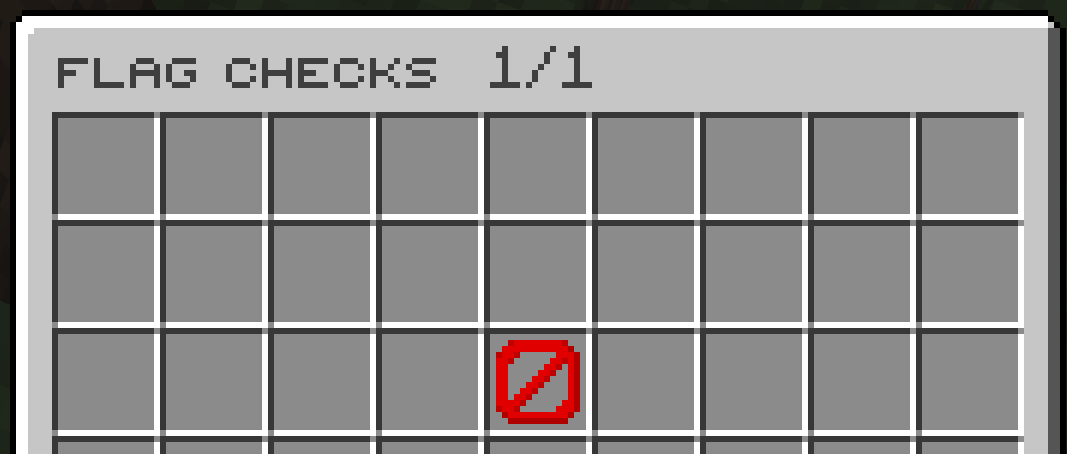
/replay flagchecks — recordings triggered by an anticheat flag./replay pvpchecks— PvP-death recordings.
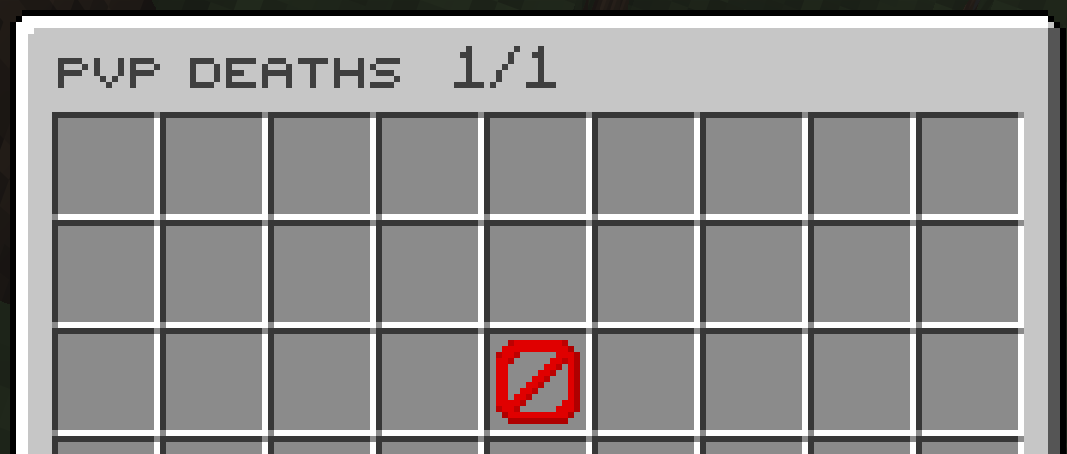
/replay pvpchecks — fights that ended in a kill./replay deaths— Death Cam clips (with pre-roll).
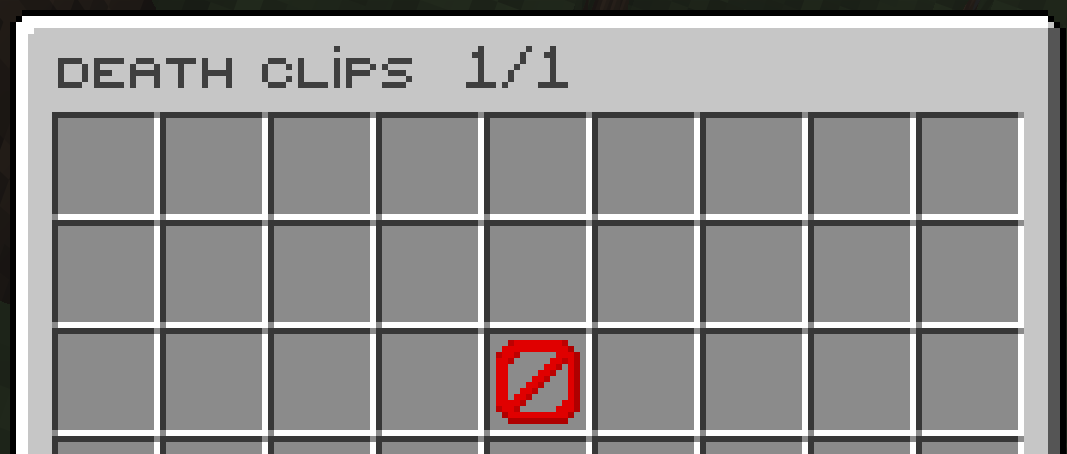
/replay deaths — every death, rewound a few seconds so you see how it happened.Each browser shares a Filter (by type), a Sort by date dial and a live recording count along the bottom row.
In-game playback controls
Click any clip — or run /replay play <name> — and you drop into the replay as an invisible, invulnerable spectator. The hotbar becomes a video-style control bar:
| Slot | Control |
|---|---|
| Frame Back / Forward | While paused, step exactly one frame. |
| Rewind / Forward 5s | Jump five seconds. |
| Pause / Play | Stop or resume playback. |
| Speed | Left-click slower, right-click faster. |
| Players | Teleport to any recorded player. |
| Exit | Stop watching and restore your view. |